 Last updated Nov 21, 2026
How to cancel Canva
If you subscribed directly with Canva, click your profile button on canva.com, then Settings, Billing, Cancel plan and Continue cancellation, pick a reason and click Continue cancellation again: 7 steps, 46 s.
Watch zuzu cancel a Canva subscription
4 ways to cancel your Canva subscription
Canva lists 3 ways to cancel. Texting zuzu is a 4th: zuzu does the online route for you.
Google Play
In the Google Play Store on your Android device, if Google Play bills you.
Your Google Play account See howCan you cancel your Canva subscription on canva.com?
Yes, you can cancel your Canva subscription on canva.com if you bought it directly from Canva, whether you call it Canva Pro, Canva Premium or your Canva membership. From the homepage, select your account profile, then Settings and Billing. Under your plan, select Cancel plan and follow the on-screen prompts to confirm.
The recorded cancellation on Nov 21, 2026 took 7 steps and 46 s. If you subscribed through Google Play or the App Store, you cancel in that store instead, because the Canva app can't cancel those subscriptions and uninstalling it doesn't either.
Before you start, have your Canva login ready and check that you're in the account and team that pay for the plan: the email under the Your account tab shows which account you're in. If you've signed in more than one way, you may have more than one Canva account, and on a Canva Teams plan only owners and administrators can cancel.
Timing matters more than speed. Paid Canva plans renew on their own, so cancel before your current paid period ends, and don't leave it to the last day, because the charge can show up a day before the date you expect. The date is on the Billing page in Settings, or on the Subscriptions screen in the App Store or Google Play if you pay there. Whenever you cancel, you keep paid features until the period ends.
The part people miss is that Cancel plan doesn't cancel yet. Canva first asks "Are you sure you want to cancel?", then "Why do you want to cancel?", and Continue cancellation on that second screen stays greyed out until you pick a reason. Once you do, that click cancels at once, with no second confirmation, and the next screen says "Your subscription has been canceled". Afterward, the Billing page shows Stay on Canva Pro until your end date, which is normal.
The 7 steps further down show the online route screen by screen. If you'd rather not click through it, text zuzu and it's handled.
Canva cancellation policy 2026: what to know before you cancel
The rules that decide what you pay, from the charge that can come a day early to refunds.
Cancel before your renewal date, with a day to spare
Paid Canva plans renew on their own, and the charge can land a day before the date you expect.
You keep paid features until your billing period ends
Canceling stops future payments, and your paid features keep working until the end of the period you've paid for.
Your designs stay, with Pro elements watermarked
Your designs stay on Canva Free, and team designs stay in the team's workspace. Pro elements show a watermark until you resubscribe.
Canva rarely refunds a subscription
Canva reviews every refund request, but its subscriptions usually aren't refundable. Apple handles refunds for plans billed through the App Store.

Text zuzu and skip 7 manual steps
zuzu is an assistant you text. It signs in and cancels for you.
- 1You text: "Hey zuzu, cancel my Canva Pro subscription."
Use your own words. There's no form to fill in.
- 2zuzu texts you when it's done, with your end date
zuzu goes through the same screens. You can check Billing in your Canva settings afterward, where Stay on Canva Pro shows until your end date.
The old way: cancel Canva step by step
Prefer to do it yourself? You need your Canva login. Each step shows the screen you'll see.
This is the route Canva expects you to take if you subscribed directly with Canva, and it took 46 s in the recording. Open More detail under any step for the full explanation.
Watch the full cancellation by hand · 0:46
The 7 steps · 46 s
-
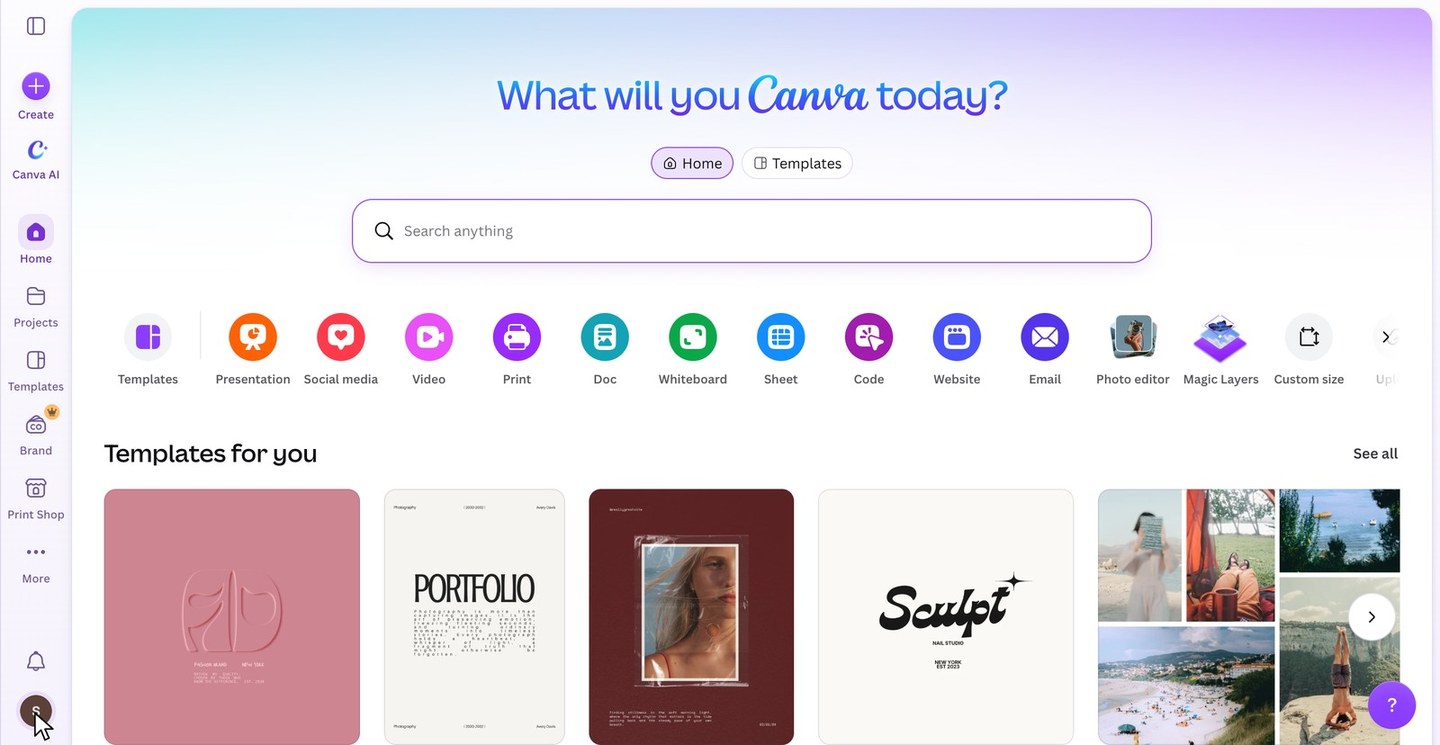
Click your profile button
Go to canva.com, sign in and click the round profile button at the bottom of the left side bar.
Watch this step · 0:02More detail on this step
Sign in to the Canva account that pays for the plan. If you've signed in more than one way, such as with Google and with email, you may have more than one Canva account, and the plan sits in only one of them.
-
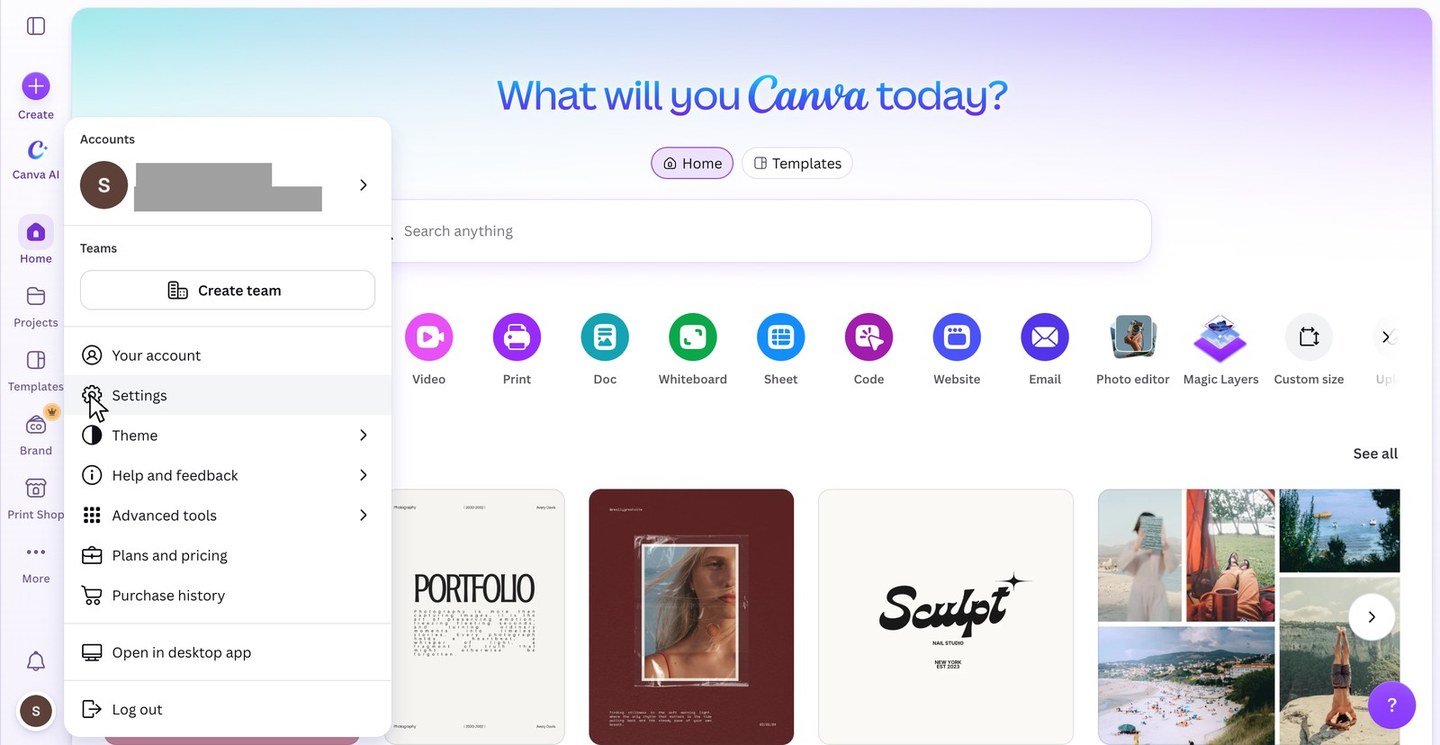
Click Settings
A menu opens. Click Settings.
Watch this step · 0:07More detail on this step
If a team pays for the plan, switch to that team first. Canva lists the wrong account or team first among the reasons a cancel doesn't work, and Your account in this menu shows the email you're signed in with.
-
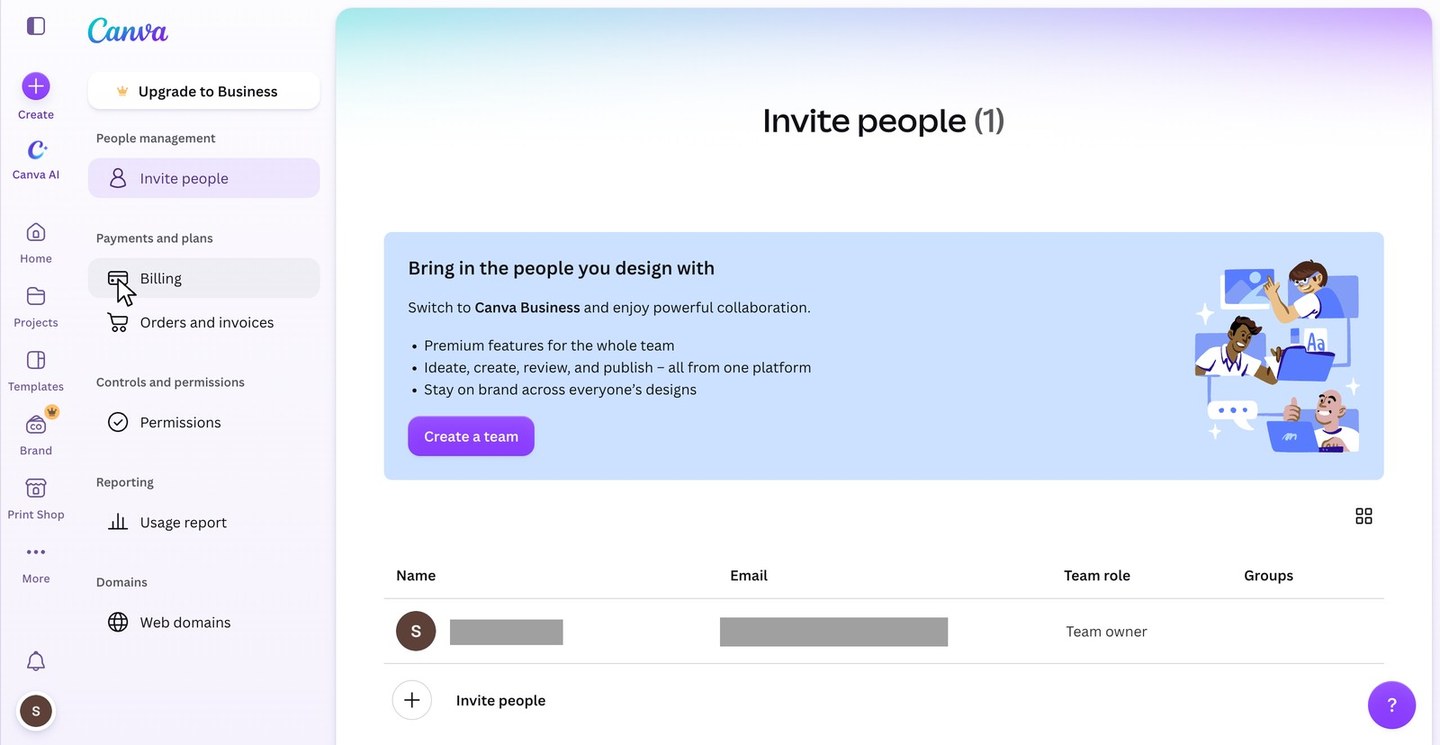
Click Billing
Settings opens on Invite people. Click Billing in the side bar, under Payments and plans.
Watch this step · 0:10More detail on this step
On a Canva Teams plan, only an owner or administrator can cancel.
Tired already? zuzu does all 7 steps for you.
-
Click Cancel plan
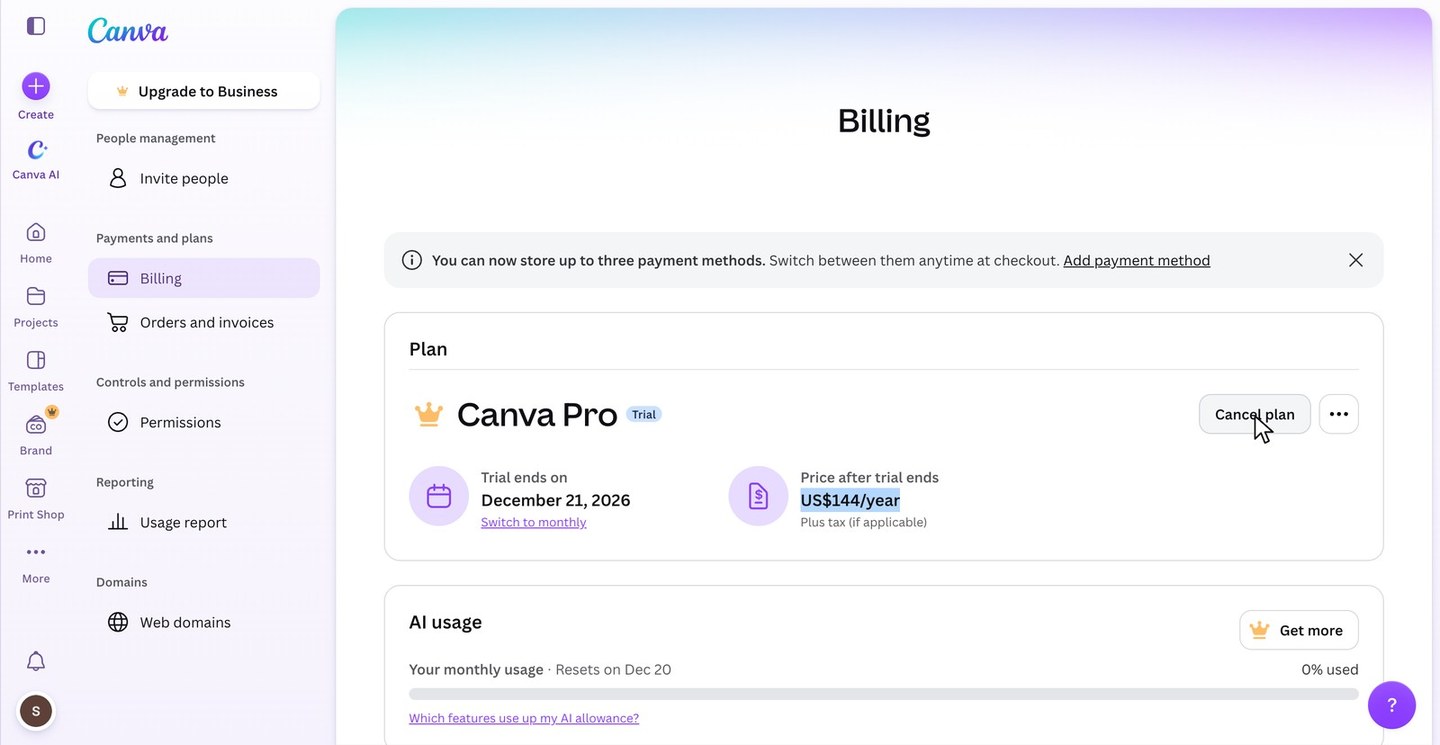
Billing shows your plan and the date your trial or billing period ends. Click Cancel plan next to your plan's name.
Watch this step · 0:27More detail on this step
Your premium features keep working until that date, whenever you cancel, and your designs stay in your account on Canva Free after it.
-
Click Continue cancellation
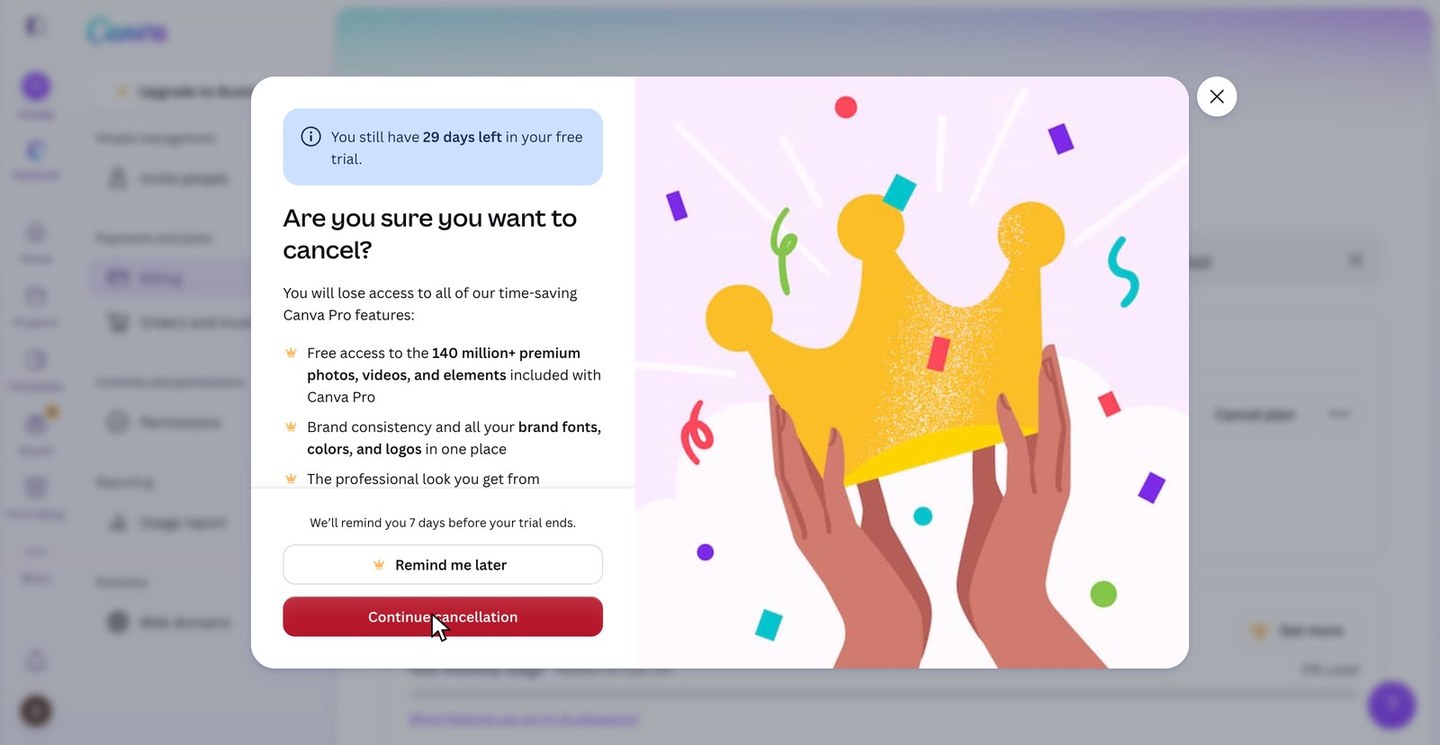
Canva asks "Are you sure you want to cancel?" and lists the features you'll lose. Click Continue cancellation.
Watch this step · 0:31More detail on this step
Nothing is canceled on this screen. The cancel happens on the next one, after you pick a reason.
-
Pick a reason and click Continue cancellation
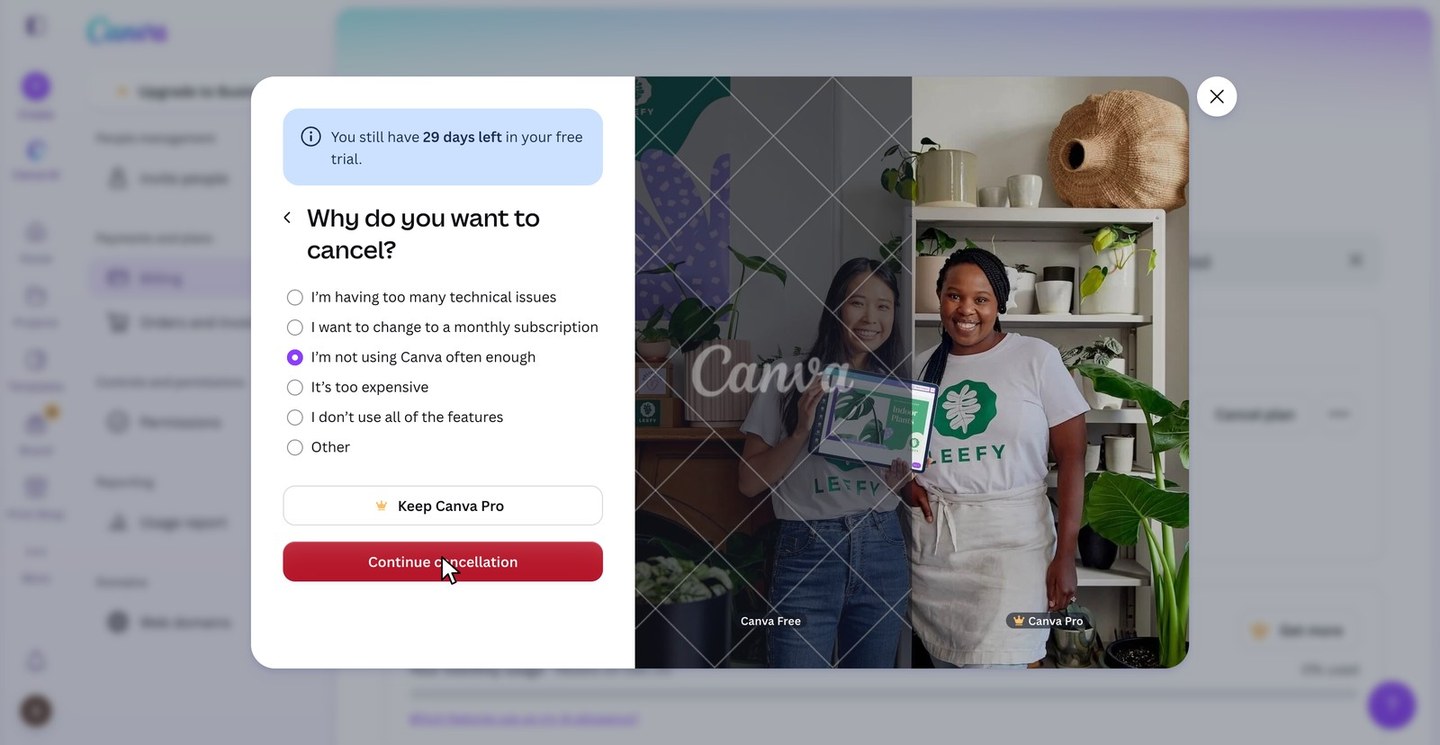
This is the click that cancelsCanva asks "Why do you want to cancel?" Pick a reason, such as I'm not using Canva often enough, then click Continue cancellation.
This cancels right away. Canva doesn't ask you to confirm again.
Watch this step · 0:33More detail on this step
Continue cancellation stays greyed out until you pick a reason. On a monthly plan, or a yearly plan with less than two months until it renews, the list can also offer I want to pause my subscription, which pauses the plan for three months instead. To keep Canva Pro, click Keep Canva Pro.
-
Note your end date
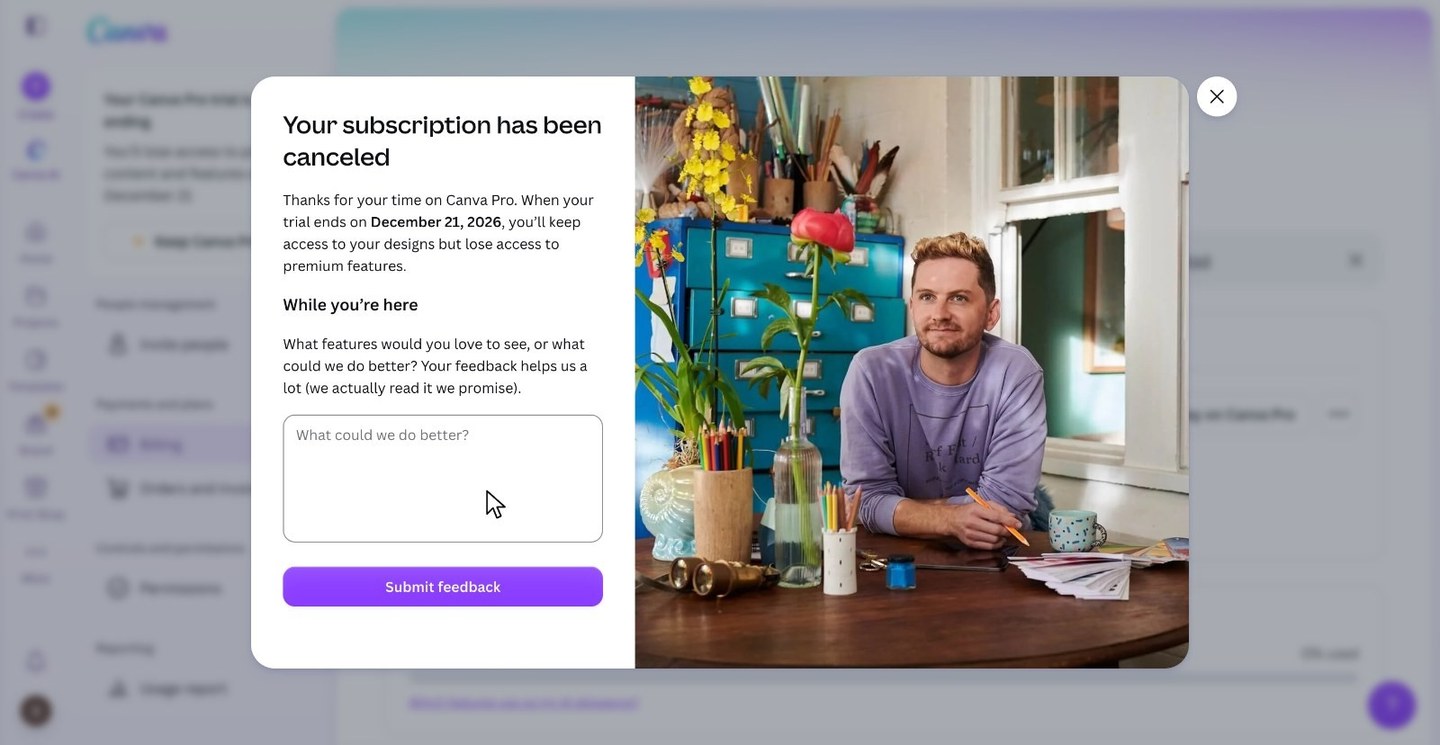
DoneCanva says "Your subscription has been canceled" and, on a free trial, gives the date it ends. Take a screenshot as proof.
Watch this step · 0:38More detail on this step
The Billing page shows your end date too, and your designs stay in your account on Canva Free after it. The feedback box, What could we do better?, is optional. Canva also emails you a confirmation, and if it doesn't come, the cancellation may not have gone through.
After you cancel your Canva subscription
You keep your paid features until your end date
The Billing page in Settings shows the date your billing period or free trial ends, and your premium features keep working until then. In the recording, a Canva Pro free trial was canceled on Nov 21 and its premium features run until Dec 21, the day the trial ends.
Your account shows Stay on Canva Pro
That's normal. Your plan stays active until your end date, and the Billing page shows Stay on Canva Pro where Cancel plan was, which means the cancellation went through. Canva also emails you to confirm it. If no email comes and Billing still shows Cancel plan, cancel again.
Changed your mind?
If you canceled on canva.com, go back to Billing before your end date and select Stay on Canva Pro, or the Stay button with your plan's name. After that date you can subscribe again at any time, except to Canva Teams, which is closed to new sign-ups.
Keep the cancellation confirmation email, and a note of the date your paid period ends, until that date has passed. After it, check your bank or card statement once to make sure no new charge shows up. If one does, Canva says to check for a second Canva account under another email, cancel in Google Play or the App Store if you subscribed there, and contact Canva with the invoice ID or a screenshot of the charge.
How to cancel a Canva free trial
The same way as a paid plan, before the trial ends. If Canva bills you, go to Settings on canva.com, then Billing, and select Cancel plan under your plan. Canva's Terms of Use say that at the end of a free trial it charges the fee for the next billing cycle to your payment method, unless you cancel before the trial ends.
Your trial end date shows next to your current plan on the Billing page, and Canva emails you a reminder before the trial ends. Cancel ahead of that date, because the charge can show up a day before you expect it. If you started the trial without giving payment details, it ends on its own and you aren't charged.
If you started a Canva Pro trial in the app and pay through Apple or Google Play, cancel it in that store, and Apple says to cancel a trial at least 24 hours before it ends. Each Canva account and each payment method gets one free trial, so you can't start another on the same account or payment method later.
How to cancel a Canva subscription on iPhone or Android
In Settings on your iPhone or iPad, if you subscribed through the App Store. Tap your name, then Subscriptions, tap Canva and tap Cancel Subscription, then confirm. Apple says that if there's no Cancel button, or you see an expiration message in red, the subscription is already canceled.
If Canva isn't in the list, Apple says to search your email for "receipt from Apple", check which Apple Account the receipt names and sign in with that one. You can't cancel an App Store subscription in the Canva app, and deleting the app doesn't cancel it.
On Android, if you subscribed through Google Play, open the Google Play Store, tap your profile icon, then Payments & subscriptions and Subscriptions, find your Canva plan and tap Cancel subscription. If it isn't listed, switch to the Google account you subscribed with. A plan you bought on canva.com is canceled on canva.com, even if you use Canva on your phone.
Can you get a refund if you cancel your Canva subscription?
Usually not. Canva's refund help says its subscriptions aren't refundable in most cases, and its Terms of Use say a canceled plan runs to the end of the billing cycle with no refund of fees already paid, except where the law requires one. Canva still reviews every refund request and says it sometimes helps, depending on the situation.
If your payment failed and Canva canceled your plan, its help says you may be eligible for a refund. Canva says an approved refund's processing time depends on your bank or payment provider: 5 to 10 business days for a credit card, 3 to 5 on PayPal and up to 20 for other payment methods.
Canva can't refund a subscription billed through the App Store, because Apple handles those: sign in to reportaproblem.apple.com, choose the subscription and submit your request, and Apple says to expect an update within 24 to 48 hours. Either way, canceling stops future charges, and premium features keep working until your billing period ends.
Canva cancellation FAQ
Common questions about canceling Canva. Sources checked Nov 21, 2026.
How do I cancel my Canva subscription?
If you subscribed directly with Canva, sign in on canva.com, click your profile button at the bottom of the side bar and select Settings, then Billing. Click Cancel plan next to your plan, then Continue cancellation, pick a reason and click Continue cancellation again, and look for Canva's confirmation email afterward. If you subscribed through Google Play, cancel in the Play Store on your Android device, and if you subscribed through the App Store, cancel in Settings on your iPhone or iPad.
How do I unsubscribe from Canva?
Cancel your paid plan, and your Canva account stays open on Canva Free. If Canva bills you, that's Settings, Billing and Cancel plan on canva.com, and if you pay through Google Play or the App Store, you cancel in that store. Uninstalling the app doesn't cancel a mobile subscription, and deleting your account doesn't cancel a plan either, so cancel first: Canva can't recover a deleted account.
Can I pause my Canva subscription instead of canceling?
Yes, for three months, on a monthly plan or on an annual plan with less than two months until it renews. On the Billing page, select Cancel plan, then Continue cancellation, choose I want to pause my subscription, select Continue cancellation again and confirm with Pause for 3 months. The pause starts when your billing period ends, with no charges and no premium features until the plan restarts on its own, and Canva emails you before it does. In the recording, a Canva Pro free trial had no pause choice on that screen, and a plan billed through the App Store can't be paused, only canceled.
How do I cancel a subscription billed by Canva Pty Limited?
On canva.com, in the Canva account that holds the plan. Canva Pty Limited is the seller name PayPal shows for a Canva charge, or Canva UK Operations Limited in the UK, while App Store and Google Play charges show as APPLE*Canva and GOOGLE*Canva. Sign in, go to Settings, then Billing, and select Cancel plan. If the plan isn't there, you may have a second Canva account if you've signed in more than one way.
Can an app or service cancel Canva for me?
zuzu can. Text zuzu that you want to cancel Canva, and it does the online route for you and texts you when it's done, with your end date.
The ways to cancel and the rules on renewal, refunds, free trials, pausing and your designs come from Canva's help articles on canceling a plan, pausing a plan, automatic renewal, refunds, unexpected charges, billing frequency, failed payments, premium features, upgrading and free trials, ending a free trial early, Canva Teams, switching plans and deleting an account, and from its Terms of Use. Apple's steps and refunds come from Apple Support on canceling a subscription and requesting a refund. The rest comes from the recorded cancellation on Nov 21, 2026.
How this guide was made

Researched, written and tested by Harsh at zuzu.
- Recorded click by click on canva.com on Nov 21, 2026, canceling a Canva Pro free trial.
- The ways to cancel and the renewal, refund, free trial and pause rules come from Canva's help articles and Terms of Use, and from Apple Support, checked on Nov 21, 2026.
Cancel more subscriptions you don't use and save money
Each guide follows one real cancellation on the company's own website, with every click recorded.
 Cancel ChatGPT
6 steps · 33 s on the website
 Cancel DashPass
6 steps · 47 s on the website
 Cancel Fubo
7 steps · 1 min 1 s on the website
 Cancel HBO Max
5 steps · 45 s on the website
 Cancel Kindle Unlimited
4 steps · 32 s on the website
 Cancel Netflix
5 steps · 44 s on the website
 Cancel Paramount+
5 steps · 27 s on the website
 Cancel Peacock
4 steps · 20 s on the website
Cancel your Canva subscription easily and start saving today
Text zuzu and it's handled.